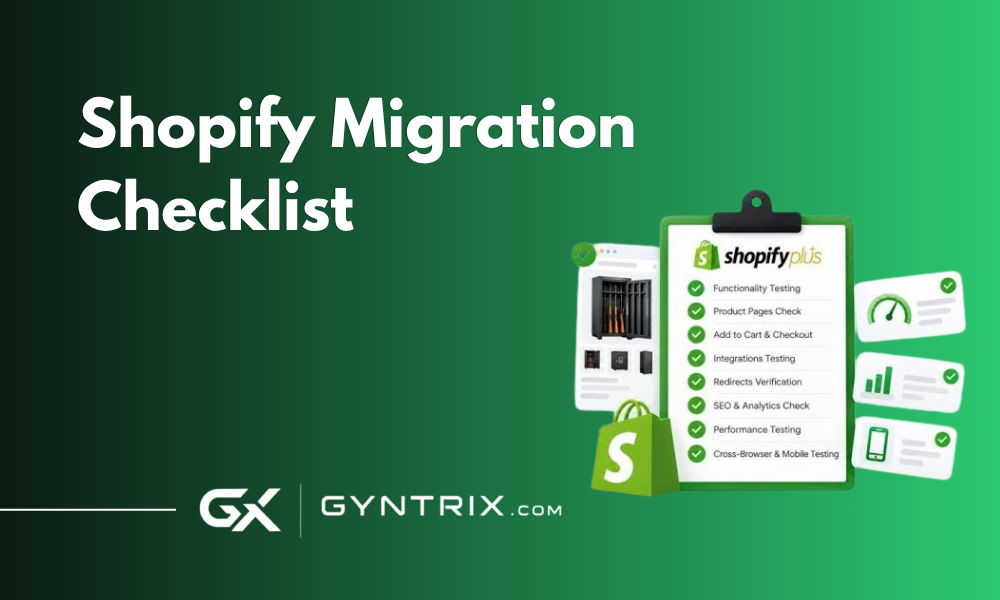
Migrating an ecommerce store to Shopify involves much more than transferring product names and prices. A successful migration must preserve important customer information, historical orders, product variants, search engine visibility, website content, and the integrations that keep daily operations running.
Even a well-designed Shopify store can experience problems after launch if product data is incomplete, customer records are duplicated, old URLs stop working, or order history is missing. These issues can affect customer trust, fulfillment, marketing campaigns, and organic search traffic.
A structured Shopify migration checklist helps businesses organize these tasks before moving their store. Whether you are migrating from WooCommerce, Magento, BigCommerce, another ecommerce platform, or a custom-built website, the goal is to move the right data, validate the new store, and minimize disruption to customers.
This guide covers the major migration stages, including products, customers, SEO, order history, integrations, testing, and post-launch monitoring.
Why You Need a Shopify Migration Checklist
An ecommerce migration affects several connected parts of a business. Product information feeds the storefront and marketplaces. Customer records support service and marketing. Historical orders provide transaction context. SEO settings help search engines understand the new website, while integrations connect the store to payment providers, shipping systems, analytics platforms, and ERP software.
If one part is overlooked, the impact can extend beyond the website itself. For example, a product may appear correctly on the storefront but have an incorrect SKU in the warehouse system. A customer may be able to log in to the new store only after resetting their password. A high-traffic product page may lose organic visits if its previous URL is not redirected to the correct Shopify page.
Following a planned process makes it easier to assign responsibilities, identify risks, and test each area before the new store goes live. Businesses planning a larger rebuild can also review Shopify development services to understand the technical work involved in preparing and customizing a store.
Phase 1: Prepare Your Existing Store for Migration
Before importing data, document the current website and identify what needs to be transferred. This creates a baseline for checking whether the new Shopify store contains the correct information.
1. Audit your existing ecommerce website
Start by reviewing your current platform, catalog, customer database, website structure, and business workflows. Do not assume that every piece of data should be migrated without review. Older stores often contain discontinued products, duplicate customer records, outdated pages, and unused integrations.
- List all product pages, collections, categories, and variants.
- Export customer records and review duplicate entries.
- Identify historical orders that need to remain accessible.
- Document discount rules, shipping methods, and tax settings.
- List active apps, payment providers, and third-party integrations.
- Record important blog posts, landing pages, and informational pages.
- Identify subscriptions, gift cards, store credits, and loyalty data that require special handling.
Use analytics and search performance data to identify important pages before removing or consolidating content. A page that receives little traffic today may still have valuable backlinks or serve an important customer journey.
2. Back up your data
Create a secure backup of the source store before starting the migration. Depending on your platform, this may include CSV exports, database backups, media files, customer records, order information, and configuration details.
Store the backup separately from the live website and restrict access to sensitive customer information. Verify that the files can be opened and that the export contains the fields needed for migration. A backup that is incomplete or difficult to restore is not a reliable recovery plan.
3. Decide what to migrate
Classify the information into three groups: data that must be transferred, data that needs cleaning or restructuring, and data that should remain archived. This decision should consider business requirements, customer service needs, retention policies, and technical limitations.
For example, a business may choose to migrate active products and recent orders while keeping older reports in a separate archive. However, historical orders that are still within the return or warranty period may be essential for customer support and should be considered carefully.
Phase 2: Migrate Products and Catalog Data
Product data is one of the most important parts of a Shopify migration. Missing variants, incorrect prices, broken image links, or inconsistent SKUs can affect both customer experience and order fulfillment.
4. Export and validate product information
Before importing products into Shopify, review the available fields in your existing catalog. Make sure the export includes all information needed for the new storefront and connected systems.
- Product titles and descriptions.
- Product handles and URLs.
- SKUs, barcodes, and inventory tracking settings.
- Prices, compare-at prices, and cost information where required.
- Product variants, including sizes, colors, and other options.
- Product images, image ordering, and alternative text where available.
- Collections, categories, tags, and product types.
- Weight, dimensions, shipping requirements, and tax settings.
- Metafields and custom product attributes.
Pay particular attention to product variants. If a product has several sizes or colors, verify that each combination is represented correctly and has the appropriate SKU, price, and stock information.
5. Clean product data before importing
Migration is a good opportunity to remove duplicate records, correct inconsistent naming, and standardize product attributes. For example, the same color should not appear as three different values simply because the original catalog used inconsistent capitalization or spelling.
However, do not rewrite all product descriptions or change product handles without a clear reason. Large content changes during a platform migration can make troubleshooting SEO performance more difficult.
If you plan to update the storefront design at the same time, review your Shopify development cost considerations and define the scope of catalog cleanup separately from theme development.
6. Import products and verify the results
Choose an import method based on catalog size, data complexity, and the capabilities of the source platform. Shopify supports product CSV imports, while migration apps and custom API-based solutions may be more suitable for complex catalogs.
After importing, compare a representative sample of products against the source store. Include simple products, products with many variants, products with multiple images, and products with custom attributes.
- Confirm that titles and descriptions are complete.
- Check that product images load correctly.
- Verify variant options, SKUs, and prices.
- Review inventory tracking and location assignments.
- Confirm that products are available on the intended sales channels.
- Check collections and product filters.
A successful import does not necessarily mean that every product is ready to sell. Some imported products may remain unpublished or require additional configuration before they become available to customers.
Phase 3: Migrate Customer Records and Account Information
Customer data must be handled carefully because it supports order history, customer service, segmentation, and marketing. Incorrect imports can create duplicate records or associate purchases with the wrong customer.
7. Export and clean customer data
Review the customer fields available in your existing platform and map them to the corresponding Shopify fields. Depending on your store, the data may include:
- Customer names and email addresses.
- Phone numbers and shipping addresses.
- Billing addresses where available and appropriate.
- Customer tags and segmentation data.
- Marketing consent and subscription status.
- Company details or customer-specific information for B2B sales.
- Relevant custom fields supported by your migration approach.
Remove obvious duplicates and correct formatting problems before importing. For example, a customer record with an invalid email address may create problems for account notifications or future communication.
Do not assume that every field in the old platform has a direct equivalent in Shopify. Some data may need to be stored using supported metafields, tags, or an external business system.
8. Plan the customer login experience
Customer records and customer passwords are different types of data. Existing passwords generally cannot be transferred as usable passwords because authentication credentials are protected. Depending on the account system and migration method, customers may need to activate their accounts or reset their passwords.
Plan this process before launch. Update account-related messaging, prepare customer support instructions, and explain how customers can access their accounts on the new website.
Also review marketing consent. Importing an email address does not automatically mean that the customer has consented to promotional email marketing. Preserve consent information where supported and follow the applicable privacy and marketing requirements.
Phase 4: Migrate Historical Orders and Transaction Records
Historical order migration is often more complex than product or customer imports. Order records may include line items, taxes, discounts, shipping charges, refunds, payment details, fulfillment status, and customer references. Not every migration method supports all these fields in the same way.
9. Decide how much order history to transfer
Define the order history required for customer service, returns, accounting, reporting, and operational continuity. Many businesses prioritize orders that remain within their return or exchange period, then decide whether older transactions should also be imported.
Shopify's migration guidance recommends considering historical orders and maintaining the correct relationship between imported products, customers, and orders. Review the official Shopify migration documentation before finalizing your migration method.
10. Choose a suitable order migration method
Product and customer CSV imports are useful for basic data transfer, but they do not provide a complete solution for every type of historical order data. Depending on your requirements, you may need a migration app or a custom solution using Shopify APIs.
Before choosing a method, confirm whether it supports:
- Order numbers and original order dates.
- Customer associations and product line items.
- Historical prices, discounts, taxes, and shipping charges.
- Fulfillment and tracking information.
- Cancellation, refund, and return records.
- Payment and transaction history where supported.
- Guest checkout orders and orders without matching customer accounts.
Do not assume that imported historical orders will behave exactly like new Shopify orders. Certain actions, notifications, reports, or payment-related operations may differ depending on how the records were imported.
11. Import products and customers before historical orders
For migration methods that link historical orders to Shopify products and customer records, the import sequence matters. Shopify's migration guidance recommends importing products first, customers second, and historical orders afterward. This helps preserve relationships between the records.
After the import, sample orders from different dates and order types. Confirm that the customer association, line items, totals, and other supported fields match the original records.
Also check whether importing historical orders triggers notifications. Shopify notes that order notifications may be sent for imported orders to staff members configured to receive them. Review notification settings before running a large import.
Phase 5: Protect SEO During Shopify Migration
SEO requires special attention because moving to Shopify can change page URLs, templates, internal links, metadata, and technical site settings. Even when product information is transferred correctly, organic traffic may decline if search engines and visitors cannot reach the new versions of important pages.
12. Build a complete URL mapping spreadsheet
Before launch, collect the important URLs from your existing website and map each one to its intended destination on Shopify. Include product pages, categories, blog posts, landing pages, and informational pages.
Your mapping spreadsheet should contain:
- The original URL.
- The new Shopify URL.
- The page type and migration status.
- Organic traffic or business importance, where available.
- Whether a redirect is required.
- The result of the redirect test after implementation.
Use a crawler, analytics reports, Google Search Console data, and existing sitemaps to build the URL inventory. A crawler alone may miss orphan pages or URLs that are no longer linked internally but still receive traffic or backlinks.
13. Create appropriate 301 redirects
If a page's URL changes, create a permanent redirect from the old address to the most relevant new page. For example, an old product URL should normally redirect to the equivalent product page rather than the homepage.
Avoid redirect chains, loops, and broad rules that send unrelated URLs to a single destination. If a page has been removed and no suitable replacement exists, evaluate whether it should return a not-found response instead of redirecting to an unrelated page.
Shopify provides URL redirect management and supports importing redirects through a CSV file. Review the Shopify migration guide for the current process, then test the redirects using the original URLs.
14. Preserve important on-page SEO elements
Review the following SEO elements before the new website goes live:
- Page titles and meta descriptions.
- H1 headings and other important headings.
- Product and collection descriptions.
- Canonical URLs.
- Image alternative text and image accessibility.
- Internal links and breadcrumb navigation.
- Structured data and applicable product information.
- Robots directives and indexability.
Do not automatically change every title, description, or URL during the migration. Keeping important content and URL patterns stable where practical makes it easier to identify the cause of any performance changes after launch.
If you are moving a large store or changing the domain at the same time, plan SEO testing as a separate workstream. The Shopify enterprise SEO migration checklist provides additional guidance on redirects, benchmarking, and post-launch monitoring.
15. Update internal links, sitemap, and analytics
Check internal links so they point directly to the new Shopify URLs instead of sending visitors through unnecessary redirects. Confirm that the new sitemap is accessible and contains the expected canonical pages.
Set up Google Search Console for the new site and verify the correct domain property. Check Google Analytics 4 and other analytics tools to confirm that page views, ecommerce events, and conversions are being recorded correctly.
Keep the old domain and redirect configuration working for an appropriate period. Continue monitoring indexation, crawl errors, landing pages, organic traffic, and conversion performance after launch.
Phase 6: Migrate Integrations and Business Workflows
A Shopify migration can affect systems that customers never see but that are essential to day-to-day operations. These integrations should be documented, configured, and tested before launch.
16. Review payment, shipping, tax, and fulfillment settings
Configure the payment methods, shipping rates, delivery rules, tax settings, and fulfillment workflows required by the business. Test both successful and failed transactions, including refunds and cancellations.
Confirm that shipping labels, tracking notifications, warehouse instructions, and order status updates work as expected. If the business uses a third-party fulfillment provider, verify that the new store is connected to the correct account and warehouse configuration.
17. Reconnect ERP and inventory systems
Businesses using an ERP should test product mapping, inventory synchronization, order imports, fulfillment updates, and relevant financial data flows. A migration can expose existing integration problems if the new Shopify store uses different product IDs, SKUs, locations, or data structures.
For businesses connecting Shopify with NetSuite or Acumatica, document which system owns each data field and confirm how updates move between systems.
If you are evaluating ERP options during the migration, the Acumatica vs. NetSuite comparison can help frame the operational differences to consider. Avoid combining a platform migration with unnecessary ERP changes unless the project plan accounts for the additional risk.
18. Audit marketing and analytics integrations
Review the tools that support customer acquisition, retention, and reporting. These may include email marketing platforms, review apps, loyalty programs, advertising pixels, product feeds, and customer support systems.
- Confirm that email and SMS tools use the correct customer data and consent settings.
- Check that product feeds include the correct URLs, prices, and availability.
- Verify advertising pixels and conversion events.
- Test review widgets and confirm that existing reviews are transferred where supported.
- Check discount codes, loyalty balances, and subscription workflows.
- Confirm that customer support tools can access the information agents need.
For a custom storefront or more complex technical requirements, review the implementation scope with a Shopify development partner before the final migration window.
Phase 7: Test the Shopify Store Before Launch
Do not treat the end of the import process as the end of the migration. The store should be tested as a complete customer and operational journey, from product discovery to payment, fulfillment, and post-purchase communication.
19. Run a pre-launch quality assurance review
Use the following checklist to test the new store:
- Products, variants, prices, and images are correct.
- Customer records and supported account workflows are working.
- Historical orders are accessible and correctly associated where supported.
- Product availability and inventory locations are correct.
- Cart and checkout work on desktop and mobile.
- Successful and failed payment scenarios have been tested.
- Shipping rates, taxes, and discount codes behave correctly.
- Order confirmation, fulfillment, and refund workflows are functional.
- Redirects send old URLs to relevant new pages.
- Titles, meta descriptions, canonical tags, and indexability have been reviewed.
- Analytics and conversion tracking have been verified.
- Important integrations have been tested end to end.
Use a staging environment where possible. For live payment testing, follow the payment provider's supported test procedure so you do not accidentally charge customers or create incorrect financial records.
20. Create a rollback and issue-response plan
Before launch, identify who can make decisions if a critical issue appears. Define how the team will respond to payment failures, broken redirects, missing products, incorrect inventory, or order processing problems.
Keep source data and backups available, document the migration steps, and agree on the criteria for pausing the launch or temporarily disabling an affected integration. A rollback may not be as simple as switching platforms because new orders may already have arrived in Shopify. The plan should explain how those orders and any inventory changes will be reconciled.
Phase 8: Launch and Monitor the New Store
Launch day is the beginning of the monitoring period, not the point when the project is automatically complete. Some issues only appear when real customers browse the store, place orders, use discounts, or interact with third-party systems.
21. Monitor the first days after launch
Assign team members to monitor the new store during the initial launch period. Prioritize the checks that could affect revenue or customer access.
- Confirm that the primary domain resolves correctly and uses HTTPS.
- Test key pages and the complete checkout journey.
- Check order processing, inventory updates, and fulfillment notifications.
- Review 404 errors and failed redirects.
- Monitor analytics data and conversion events.
- Review Search Console for crawl and indexation issues.
- Check support tickets and customer feedback for repeated problems.
22. Compare performance with the pre-migration baseline
Compare the new store with the performance data collected before migration. Review organic sessions, search impressions, clicks, important keyword rankings, conversion rates, revenue, and checkout completion.
Some fluctuations are possible as search engines process the new site. However, sustained declines, a sudden increase in 404 errors, or missing conversion data should trigger investigation. Identify whether the cause is technical SEO, content changes, tracking configuration, product availability, or a customer experience issue.
Continue monitoring closely during the first few weeks and extend the review period for larger migrations. Keep the redirect map and issue log updated so the team can distinguish resolved problems from recurring issues.
Common Shopify Migration Mistakes to Avoid
Many migration problems are preventable with better planning and testing. Avoid these common mistakes:
- Importing data without validation: A completed import does not prove that all fields and relationships are correct.
- Ignoring customer account changes: Customers may need instructions to activate accounts or reset passwords.
- Skipping historical order testing: Imported order records may not contain every field or behave like new orders.
- Forgetting redirects: Changed URLs can lead to broken links and lost organic visits.
- Changing too much at once: Simultaneous changes to URLs, content, theme, and tracking make problems harder to diagnose.
- Overlooking integrations: Payment, ERP, shipping, marketing, and analytics connections all need testing.
- Launching without monitoring: Problems that appear after real orders arrive can affect customers and revenue.
How Gyntrix Can Help With Shopify Migration
A Shopify migration can involve ecommerce development, data mapping, technical SEO, integrations, and quality assurance. The level of effort depends on the source platform, catalog size, custom functionality, order history requirements, and the number of systems connected to the store.
Gyntrix can be considered for Shopify development and integration requirements where businesses need help planning a migration, configuring their new storefront, or connecting Shopify with operational systems. The right scope should begin with an audit of the existing store and a clear list of migration requirements.
Before beginning, establish the data that must be preserved, the SEO pages that require protection, the integrations that need to work at launch, and the tests required for approval. This creates a more predictable migration process and makes it easier to measure whether the new store is ready for customers.
Frequently Asked Questions
1. What should I migrate first when moving to Shopify?
For migration methods that link historical orders to Shopify products and customers, Shopify recommends importing products first, customers second, and historical orders afterward. The exact process depends on the migration tool and data types involved.
2. Can I migrate customers and their passwords to Shopify?
Customer records and supported profile information can be migrated, but existing passwords generally cannot be transferred as usable passwords. Plan for customer account activation or password reset instructions based on the account system used by your new store.
3. Can I transfer historical orders to Shopify?
Yes, historical orders can be migrated using suitable migration apps or API-based solutions. Basic product and customer CSV imports do not cover every historical order requirement. Confirm support for line items, customer associations, refunds, fulfillment data, and other fields before choosing a method.
4. How do I preserve SEO when migrating to Shopify?
Build a complete URL map, redirect changed URLs to relevant destinations, preserve important content and metadata, update internal links, and verify canonical tags and indexability. Monitor organic traffic and Search Console after launch to identify problems quickly.
5. Will Shopify migration affect my Google rankings?
A migration can temporarily affect search visibility, especially when URLs, content, page templates, or technical SEO settings change. Careful redirect mapping, content preservation, and post-launch monitoring help reduce avoidable problems, but no migration process can guarantee that rankings will remain unchanged.
6. How long does a Shopify migration take?
The timeline depends on catalog size, data quality, custom functionality, integration complexity, and the amount of testing required. A small store with straightforward data may take much less time than a large enterprise store with complex order history, ERP connections, and extensive SEO requirements. Estimate the timeline after auditing the existing platform.
7. Should I migrate all historical orders?
Not necessarily. Decide based on customer service needs, return and warranty periods, reporting requirements, and data retention policies. Many businesses prioritize recent orders and transactions that still require operational attention, while retaining older records in a secure archive when appropriate.
Conclusion
A successful Shopify migration requires a clear plan for products, customers, historical orders, SEO, integrations, and testing. Each area affects the others, so treating migration as a simple data import can create problems that surface only after the new store is live.
Start with a complete audit and backup, clean and map your data, follow the appropriate import sequence, and verify every important workflow before launch. Build redirects for changed URLs, preserve valuable content, and monitor traffic, orders, inventory, and integrations after launch.
With a structured Shopify migration checklist, your business can reduce avoidable errors, protect customer experience, and establish a reliable foundation for future ecommerce growth.