

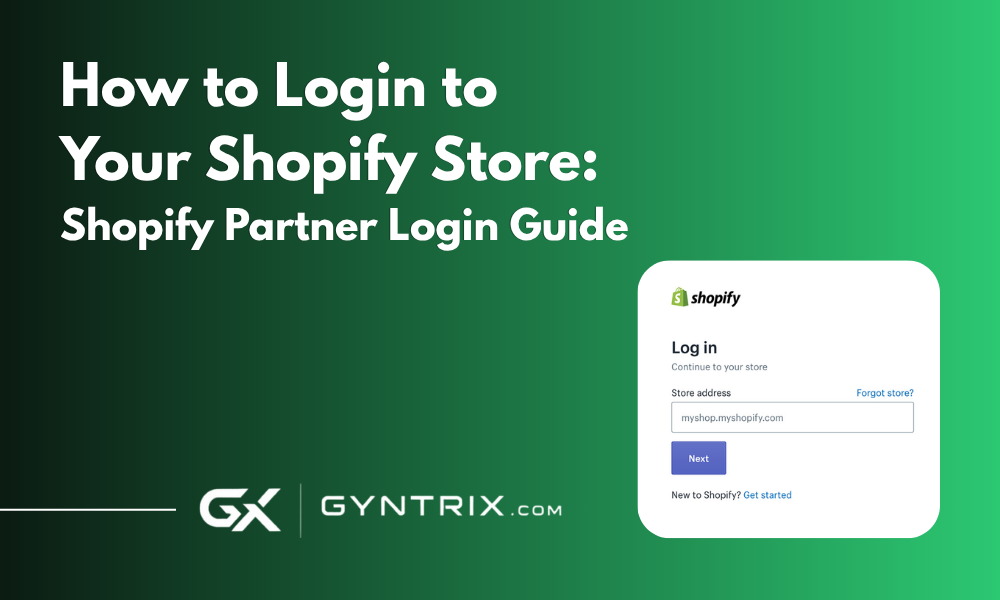
TL;DR
Shopify now runs on a unified login system called Shopify ID, so the same email and password work across Shopify Admin, the Partner Dashboard, and the Shopify mobile and POS apps, though each is still a separate destination you log into individually. Store owners and staff log in through Shopify Admin at their store's myshopify.com/admin URL, Shopify Partners log into the Partner Dashboard at partners.shopify.com to manage apps, themes, and client access, and agencies or freelancers working on a specific store use a Collaborator Account, granted through a 4-digit code, rather than ever needing the store's actual password. This guide walks through every login path, how collaborator access works, and how to fix the login problems that come up most often. If your team is managing logins and access across a growing number of stores or staff, a properly structured Shopify development and support setup avoids most of these headaches before they start.
Logging into Shopify sounds like it should not need a guide, and most of the time it does not. Where it actually gets confusing is when more than one system is involved: a store owner who is also a Partner, an agency managing a dozen client stores, or a staff member who was invited but never told which URL to use. Shopify also changed its login architecture in 2025 with the introduction of Shopify ID, a single set of credentials that now spans Admin, the Partner Dashboard, and Shopify's other tools, which has quietly resolved some older confusion while introducing a few new questions of its own.
This guide covers every login path that actually matters, Admin, Partner Dashboard, mobile app, POS, and Collaborator Accounts, along with the fixes for the login problems that come up most often for store owners and the agencies working with them.
1. Logging into Shopify Admin (Store Owners and Staff)
This is the login every store owner uses daily to manage products, orders, and settings.
- Go to
accounts.shopify.com, or go directly to your store's admin URL, formatted asyourstorename.myshopify.com/admin. - Enter the email address and password associated with your Shopify ID.
- If two-factor authentication is enabled, which Shopify requires for certain account actions, enter the verification code from your authenticator app or SMS.
- You will land on your store's Admin dashboard, ready to manage products, orders, and settings.
Important: always keep your original myshopify.com domain on hand for logging in, even after connecting a custom domain. If your storefront runs on a custom domain like yourbrand.com, the login page still lives at the myshopify.com address, and this mismatch is one of the most common sources of "I can't find the login page" confusion for newer store owners.
2. Logging into the Shopify Partner Dashboard
Shopify Partners, meaning agencies, freelancers, and developers, use a separate dashboard to manage apps, themes, referrals, payouts, and access across every client store they work with.
- Go to
partners.shopify.com, or select "Shopify Partners" from the account selector ataccounts.shopify.com. - Enter your Shopify Partner email address and continue with your password or an alternate login method.
- Complete two-factor authentication. This step is required for Partner accounts specifically, not optional, since Partner access touches multiple client stores at once.
- If your Shopify ID is linked to more than one Partner organization, select the correct organization before proceeding.
- You will land on the Partner Dashboard, where you can manage apps, themes, referrals, and every client store you have collaborator access to.
3. Shopify ID: The Unified Login System
Shopify ID, introduced in 2025, is the single login identity that now works across Shopify Admin, the Partner Dashboard, and Shopify's other tools. Before this change, a person working as both a store owner and a Partner sometimes needed to juggle separate credentials for each context. That is no longer the case.
- One Shopify ID, one email and password, now authenticates you across Admin, the Partner Dashboard, and connected Shopify tools.
- If your Shopify ID is associated with multiple stores or Partner organizations, Shopify prompts you after login to choose which one to enter.
- Using the wrong login page for what you are trying to do, Admin versus Partner Dashboard, remains the most common source of access confusion, even with unified credentials, since they are still two separate destinations built for different purposes.
4. Collaborator Accounts: How Partners Access Client Stores
This is the part of the login process most non-technical store owners have never had explained clearly, and it matters for security. A Shopify Partner does not need, and should never be given, a store's actual admin password to work on it.
- The store owner generates a 4-digit collaborator request code from their Shopify Admin settings.
- The Partner enters that code from their own Partner Dashboard to request access.
- The store owner approves the request and chooses exactly which sections of the store the Partner can see and edit, for example theme and product access only, without granting access to orders, customer data, or payment settings.
- Either party can revoke that access at any time from their respective dashboard.
- Collaborator accounts do not count toward a store's staff account limit, so a store on Basic can still grant access to multiple developers or agencies at once.
- Two-factor authentication is required to access client stores through collaborator access, which is worth enabling before requesting access rather than after.
- No store password is ever shared through this process, which is the entire point of the system.
5. Logging in via the Shopify Mobile App and POS
Mobile App
- Download the Shopify app from the App Store or Google Play Store.
- Open the app and enter your store's domain along with your Shopify ID email and password.
- Enter your two-factor authentication code if prompted.
- Tap your profile icon to switch between stores if your account has access to more than one.
Shopify POS
For a first-time POS login, an existing Admin or staff member with the right permissions needs to log the new device in, since POS access is provisioned from within Admin rather than self-served the first time. After that initial setup, staff can log in directly on the device with their own credentials.
6. Switching Between Multiple Stores
Store owners, staff, and Partners who work across several stores do not need to log out and back in each time.
- Click your store's name or profile icon in the top corner of Admin or the Partner Dashboard.
- A list of every store you have access to, both active and inactive, will appear.
- Select the store you want to switch to. You will be taken directly into that store's Admin without re-entering your password.
Check inactive stores periodically if you manage several, since a store can quietly move to inactive status over a billing issue or a paused subscription without an obvious notification.
7. Troubleshooting Common Shopify Login Issues
Symptom: "Store not found" or a blank page when trying to log in.
Fix: Confirm you are using the correct myshopify.com domain rather than a connected custom domain. A custom storefront domain does not double as a login URL.
Symptom: Correct password, but login still fails.
Fix: Check for a two-factor authentication prompt that may have been missed or blocked by a browser popup blocker. If you recently changed devices, confirm your authenticator app is still generating current codes, since a clock drift issue on the device can silently invalidate otherwise correct codes.
Symptom: Account temporarily locked after several failed attempts.
Fix: Wait for the temporary lockout window to pass, then use the "Forgot your password?" link rather than continuing to retry the same password, since repeated failed attempts can extend the lockout period.
Symptom: Store owner cannot log in and suspects the account was suspended.
Fix: Check for an unresolved billing issue first, since a failed payment is the most common cause of an unexpected suspension. Shopify typically emails the account holder directly when this happens, so check the inbox associated with the account, including spam, before assuming something more serious occurred.
Symptom: A Partner or freelancer cannot access a client's store despite having a password.
Fix: This is almost always a sign the wrong access method was used. Partners should be using a Collaborator Account requested through the Partner Dashboard, not attempting to log in with the store's own Admin credentials, which should never be shared in the first place.
8. Login Security Best Practices
- Enable two-factor authentication on every account with Admin access, not just Partner accounts, since Shopify Admin controls customer data and payment settings.
- Never share a store's actual Admin password with a developer, freelancer, or agency. Use Collaborator Accounts or Staff Accounts with scoped permissions instead.
- Review staff and collaborator access periodically and revoke access for anyone no longer working on the store, since forgotten access is a common, avoidable security gap.
- Use a password manager rather than reusing a password across Shopify and other business tools.
- Keep the email address tied to your Shopify ID current and monitored, since password resets and security alerts all route through it.
Managing access across a growing store, a larger staff, and multiple development partners gets messy fast without a clear structure. Gyntrix works as an ongoing Shopify development partner, using properly scoped collaborator access rather than shared passwords, and can help set up staff permissions, collaborator access, and account security correctly from the start rather than after something goes wrong.
If you are onboarding a development team, cleaning up staff and collaborator access, or planning a store migration and want access management set up correctly, talk to Gyntrix about your Shopify project. Our broader ecommerce development team can also help with the technical side of a migration or rebuild once access is sorted out.
Frequently Asked Questions
What is the difference between Shopify Admin login and Shopify Partner login?
Shopify Admin login takes a store owner or staff member into a single store's backend to manage products, orders, and settings. Shopify Partner login takes an agency, freelancer, or developer into the Partner Dashboard, a separate system for managing apps, themes, referrals, and access to multiple client stores. As of Shopify ID, the unified login introduced in 2025, both use the same credentials, but they are still two separate destinations.
How do Shopify Partners access a client's store without the store password?
Through a Collaborator Account. The store owner generates a 4-digit collaborator request code from their Admin settings, the partner enters that code from their Partner Dashboard, and the owner then approves the request and chooses exactly which sections of the store the partner can access. No store password is shared at any point.
Why can't I log into my Shopify store even with the correct password?
The most common causes are using the wrong login URL, such as the custom domain instead of the myshopify.com admin URL, an expired or misconfigured two-factor authentication device, too many failed login attempts triggering a temporary lockout, or a suspended account due to a billing issue. Working through these in that order resolves the large majority of login failures.
Do collaborator accounts count toward my Shopify staff account limit?
No. Collaborator accounts are separate from staff accounts and do not count against the staff limit on any plan, which means a store on the Basic plan can still grant collaborator access to multiple developers or agencies at once without upgrading plans.
SEO Metadata
SEO title: How to Login to Your Shopify Store: Partner Login Guide
Meta description: A complete 2026 guide to logging into Shopify Admin, the Partner Dashboard, POS, and collaborator accounts, plus fixes for common login issues.
URL slug: /blog/how-to-login-shopify-store-partner-login-guide
Suggested H1: How to Login to Your Shopify Store: Shopify Partner Login Guide
Primary keyword: Shopify Partner login
Secondary keywords: Shopify admin login, Shopify login guide, Shopify Partner Dashboard, Shopify collaborator account, Shopify ID login
Dofollow internal links included (gyntrix.com):
- "Shopify development" (TL;DR) → gyntrix.com/shopify-development
- "Shopify development" (CTA box) → gyntrix.com/shopify-development
- "talk to Gyntrix about your Shopify project" (closing) → gyntrix.com/contact
- "ecommerce development" (closing) → gyntrix.com/ecommerce-development
This guide reflects Shopify's login and account architecture as of 2026, including the Shopify ID unified login system introduced in 2025 and current Collaborator Account behavior. Shopify periodically updates its account and security systems, so confirm exact steps and screens against Shopify's own current help documentation if anything here does not match what you see on screen.